
Switching to a new smartphone shouldn’t mean losing your contacts, messages, notes, or home screen layout. If your data was synced to your Xiaomi Account and Xiaomi Cloud, you can quickly restore it on another phone.
Whether you just unboxed a brand-new Xiaomi, Redmi, or POCO device, or you’re moving your data across to a Samsung, OnePlus, or iPhone, this guide covers everything you need to know.
⚠️ An Important Note About Photos & Videos:
Back in 2022, Xiaomi ended direct Gallery syncing to Xiaomi Cloud globally and officially partnered with Google Photos. If you are looking for your photos and videos, they are most likely synced with your Google Account, not Xiaomi Cloud. Open the Google Photos app on your new phone and sign in with your primary Google account to access your media.
What Data Can You Restore from Xiaomi Cloud?
Every Xiaomi account comes with 5 GB of free cloud storage. Here is the data backed up and synced via Xiaomi Cloud:
- Contacts: Phone numbers, email addresses, and saved details
- Messages: SMS conversations and history
- Call Logs: Incoming, outgoing, and missed calls
- Xiaomi Notes: Text notes, voice memos, and checklists
- Home Screen Layout: App icon arrangements and folder setups
- Recorder Audio: Voice memos and call recordings
- System Settings: Saved Wi-Fi passwords, alarms, and personal preferences
Note on Third-Party Apps (like WhatsApp): Xiaomi Cloud backs up system data and built-in Xiaomi app information. For apps like WhatsApp or Telegram, use their built-in backup tools (e.g., WhatsApp > Settings > Chats > Chat backup to Google Drive) to transfer your messages.
Before You Start: Quick Checklist
To ensure a smooth, error-free restore process:
- Check Your Xiaomi Account Credentials: Make sure you know the exact phone number, email address, or Xiaomi ID and password used on your old phone. (Logging in with a different credential creates a blank account).
- Connect to a Stable Wi-Fi Network: Restoring backups consumes data, and a stable Wi-Fi connection prevents sync timeouts.
- Charge Your Battery: Ensure your phone has at least 40% battery so it does not turn off mid-restore.
Method 1: Restore Data to Another Xiaomi, Redmi, or POCO Phone
If your new device runs MIUI or the newer Xiaomi HyperOS, restoring your data is built right into the operating system.
Option A: During Initial Phone Setup
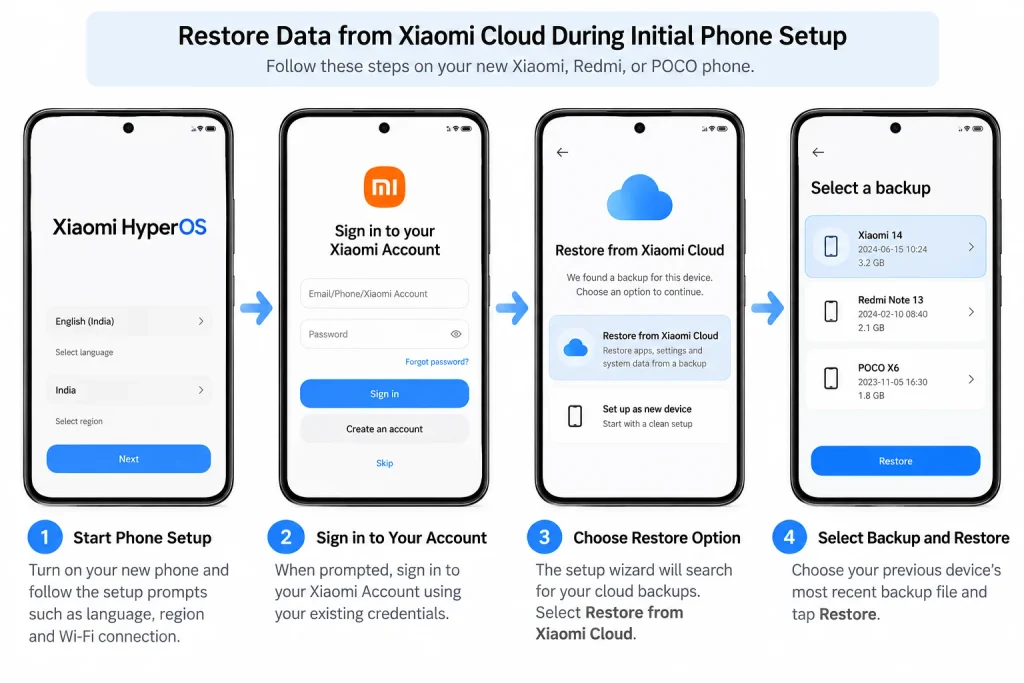
When turning on your new phone for the very first time:
- Follow the setup prompts (Language, Region, Wi-Fi connection).
- When prompted, sign in to your Xiaomi Account with your existing credentials.
- The setup wizard will search for your cloud backups. Select Restore from Xiaomi Cloud.
- Select your previous device’s most recent backup file and tap Restore.
Option B: If the Phone is Already Set Up
If you already passed the initial setup screen, you can trigger the restore anytime from Settings:
- Open Settings on your new phone.
- Go to About phone > Back up and restore > Xiaomi Cloud (or go directly to Settings > Xiaomi Account > Xiaomi Cloud).
- Sign in to your Xiaomi Account if you haven’t already.
- Tap Backups (or Restore items from the cloud).
- Choose your old phone’s backup file and tap Restore using this backup.
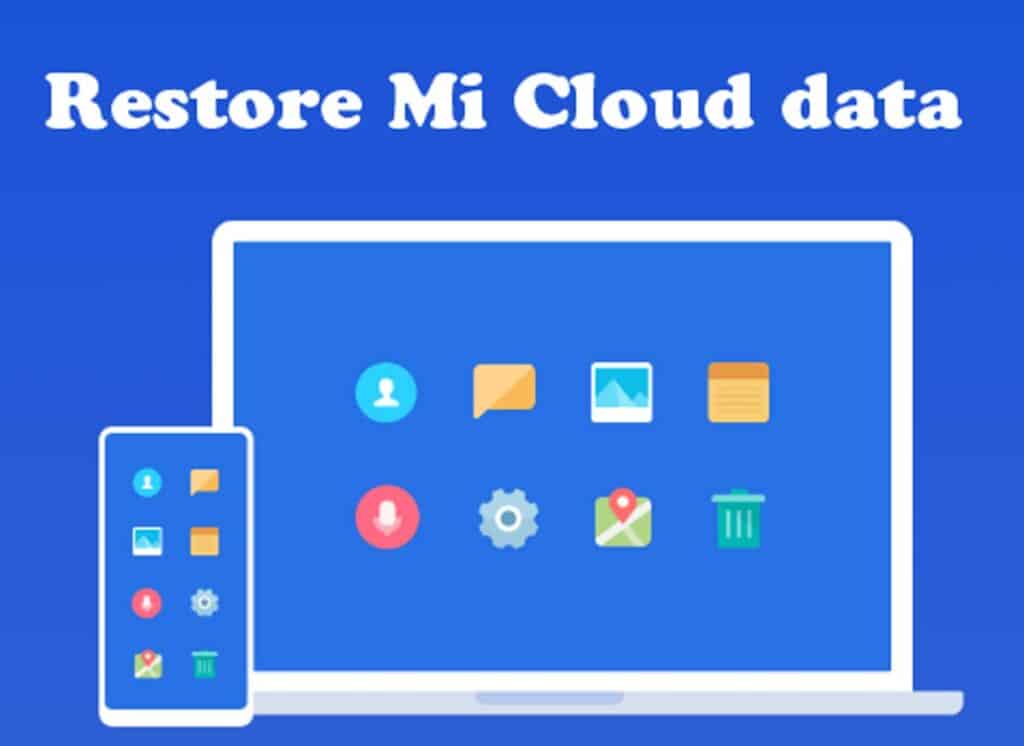
Your contacts, call logs, SMS, and saved settings will download in the background.
How to Restore Your Home Screen Layout
One of Xiaomi Cloud’s most convenient features is saving your exact home screen layout so your new phone feels familiar immediately:
- Go to Settings > Xiaomi Account > Xiaomi Cloud.
- Tap Home screen cloud backup.
- Select Restore data to this phone.
- Select your desired backup date and confirm. Your app arrangement and folders will restore automatically.
Method 2: Restore / Transfer Xiaomi Cloud Data to a Non-Xiaomi Phone (Samsung, iPhone, OnePlus, etc.)
Non-Xiaomi phones cannot directly communicate with Xiaomi’s system restore framework. However, you can easily export and download your data through any web browser:
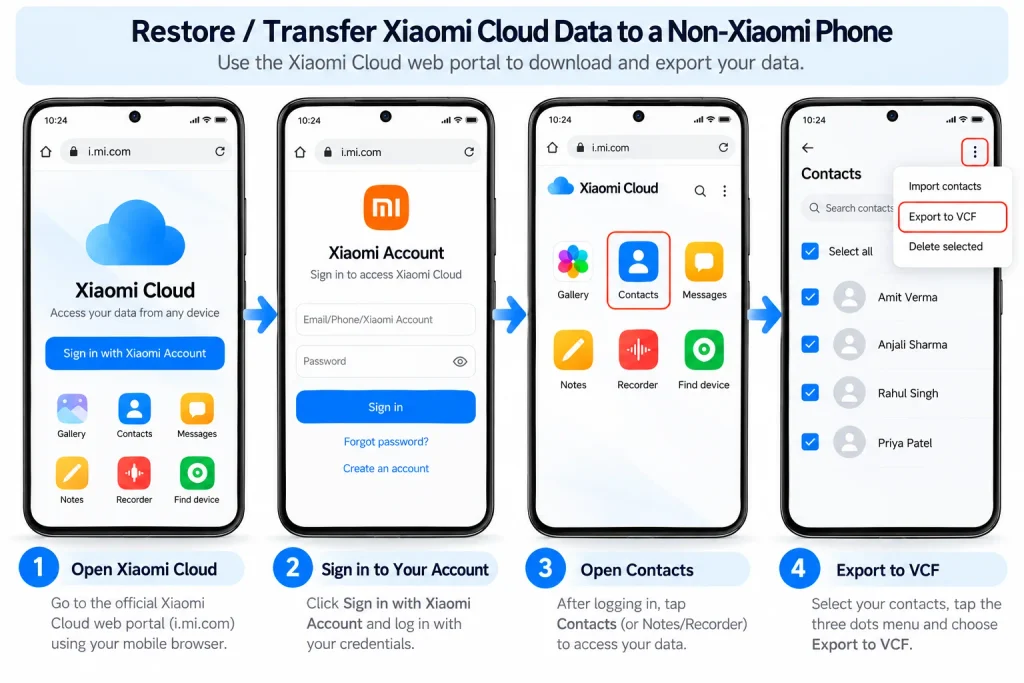
- Open your computer browser or mobile browser and go to the official Xiaomi Cloud Web Portal (i.mi.com).
- Click Sign in with Xiaomi Account and log in with your credentials.
- Access and export your desired files:
- Contacts: Click on Contacts, select all contacts, click the Settings / More (three dots) menu, and click Export to VCF. You can transfer this single
.vcffile to your new phone and import it directly into Google Contacts, Samsung Contacts, or Apple Contacts. - Notes & Recordings: Open the Notes or Recorder section to read, copy, or download your saved recordings and text memos.
- Contacts: Click on Contacts, select all contacts, click the Settings / More (three dots) menu, and click Export to VCF. You can transfer this single
💡 For a complete step-by-step walkthrough on accessing data in your browser, check out our guide: How to Download Data from Mi Cloud Account in a Browser.
Have Both Phones in Front of You? Use Mi Mover Instead
If both your old phone and new phone are working and sitting right in front of you, you don’t even need to rely on cloud downloads!
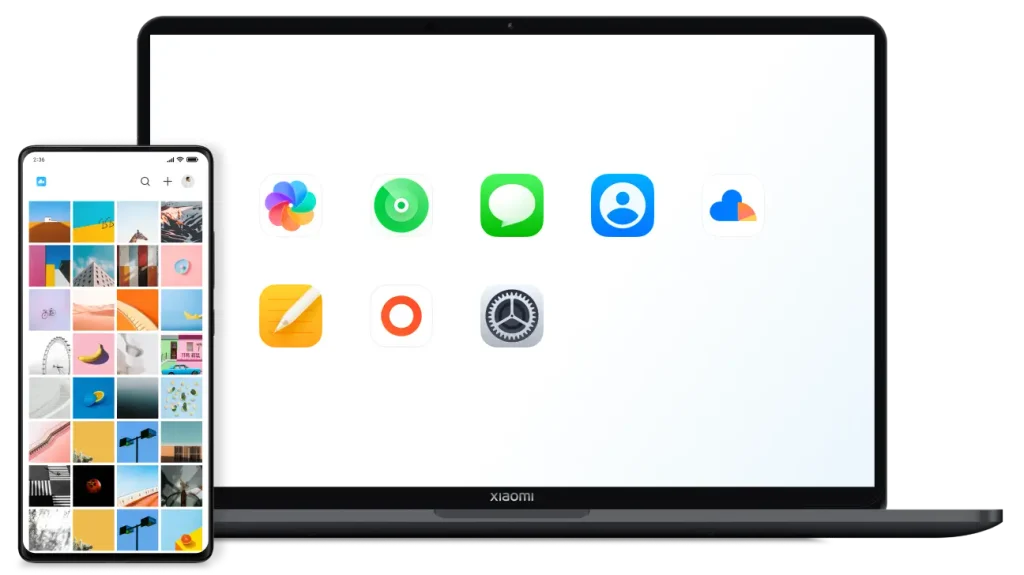
You can use the built-in Mi Mover app (available on Google Play Store and pre-installed on Xiaomi devices). It connects both phones over a direct Wi-Fi hotspot to transfer apps, photos, documents, and contacts in bulk—faster and without consuming any mobile data or cloud storage.
Troubleshooting Common Restore Problems
- “No Backup Found” or Missing Contacts: Double-check your login details. If you registered via phone number on one device and an email address on another, you may have created two separate Xiaomi accounts by mistake.
- Backup Failed / Cloud Storage Full: Xiaomi gives 5 GB free. If your storage is full, log in to
i.mi.com, tap Manage Cloud Storage, and delete old backups from discarded devices or remove large voice recordings. - Forgot Your Password? If you are locked out of your account, follow our guide on How to Reset Mi Account Password to regain access.
Final Checklist Before Erasing Your Old Phone
If your old phone is still functional, do not perform a factory reset until you verify these three items:
- Go to Settings > Xiaomi Account > Xiaomi Cloud and verify that the sync status is current for Contacts, Notes, and Messages.
- Verify that all your recent photos and videos appear in the Google Photos app.
- Confirm that third-party apps like WhatsApp have completed their latest Google Drive backup.
Related Helpful Guides
- 🔗 How to Track and Find a Lost Mi Phone
- 🔗 How to Manually Update MIUI / HyperOS to the Latest Version
- 🔗 How to Lock and Hide Apps in Xiaomi & Redmi Phones
- 🔗 What is Mi Screen Protect and How to Buy It
Questions or Issues?
Did your restore get stuck or did some contacts fail to appear? Drop your phone model and software version in the comments below, and we’ll be glad to help you troubleshoot!
I can’t download my messages from mi cloud to pc or my other device.
Same here. I really need those messages
It is asking for password after login & not receiving new password/OTP when I clicked in forgot passwords option
I want to restore my mi cloud contacts to non mi phone.but there is no such option is available…
Help me out plzzzz ASAP.
Call me ymi have a solution about it 6005955891
I can my contacts on MI cloud but I can not download or export them. Please help! 🙁 I bought a new Oneplus phone recently and unable to move my contacts on that.
Yes bro I also same problem ..
When I use Vivo phone i restore all contacts from mi account but one plus have doesn’t have any option
Hello vikas verma i got the solution of mi account contact recovery or export your contact …
Call me 6005955891
I lost my mobile but I am not able to download my contacts from mi cloud OTP issue
Why can’t I restore my redmi note 10 to poco f3. Both are using MIUI
All use Mi Mover or one plus app switch
I am unable to restore my contacts from mi cloud to my non mi phone. Please help.
I need to restore contacts from mi cloud to other phone it doesn’t work please help me
recorded call in xiomi account in one mobile can be able to get in another mobile while opening same xiomi account?
Thanks for this information