
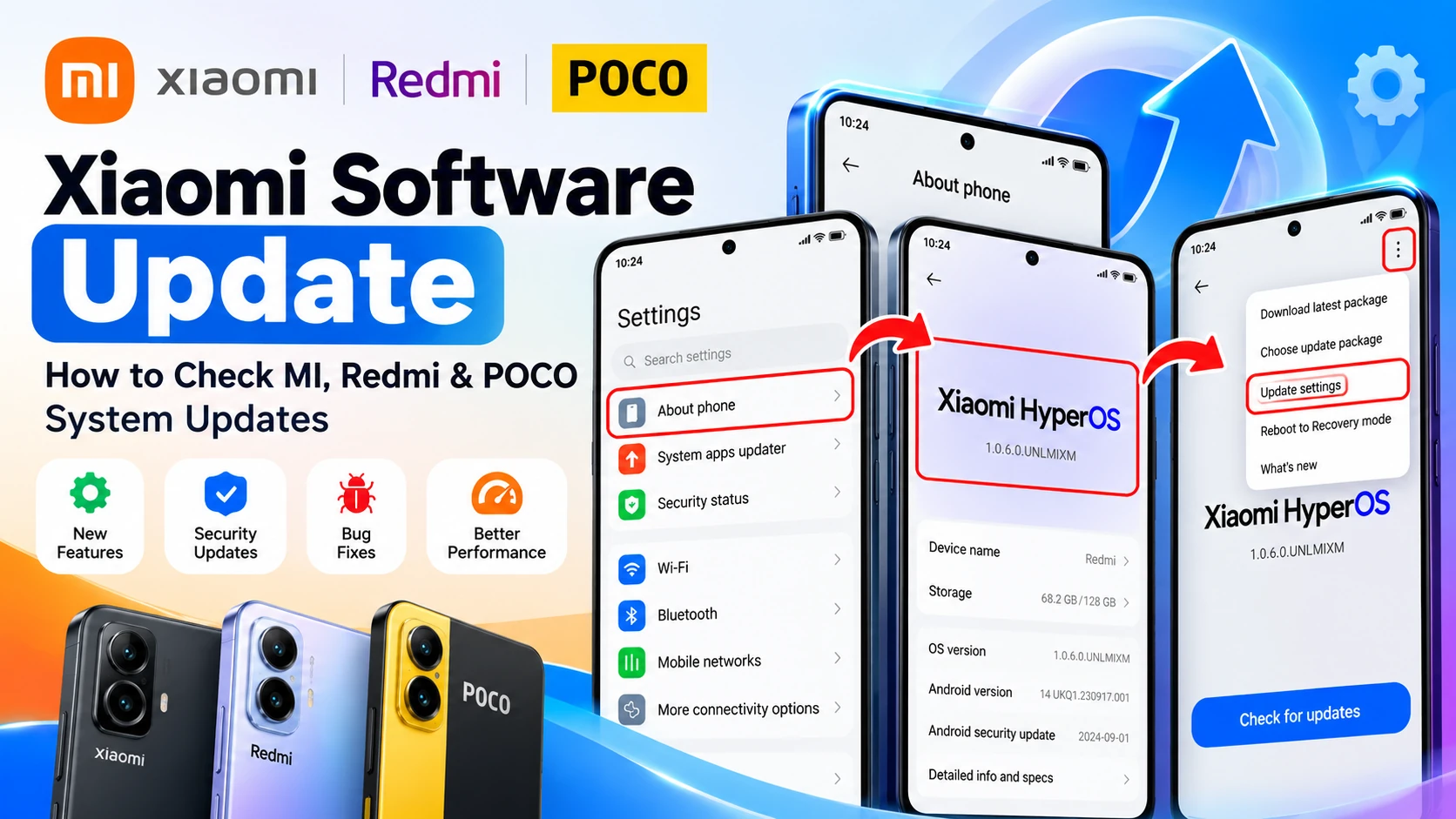
Xiaomi regularly rolls out software updates across its Xiaomi, Redmi, and POCO lineup. These updates introduce new HyperOS features, improve battery and gaming performance, patch critical security vulnerabilities, and upgrade underlying Android versions.
Whether you are using a flagship Xiaomi device, a budget Redmi phone, or a performance-focused POCO handset, this guide walks you through checking for updates, enabling automatic downloads, manually flashing official update packages, and troubleshooting updates that get stuck or fail to show up.
Quick Navigation: HyperOS vs. MIUI
Xiaomi transitioned from its legacy interface, MIUI, to its unified operating system, Xiaomi HyperOS. The steps to check for updates are slightly different depending on which OS your phone is currently running:
- For HyperOS phones (2024 and newer / upgraded models): Settings → About phone → Xiaomi HyperOS
- For MIUI phones (MIUI 14 and older): Settings → About phone → MIUI version
How to Check for an Update on Xiaomi, Redmi & POCO
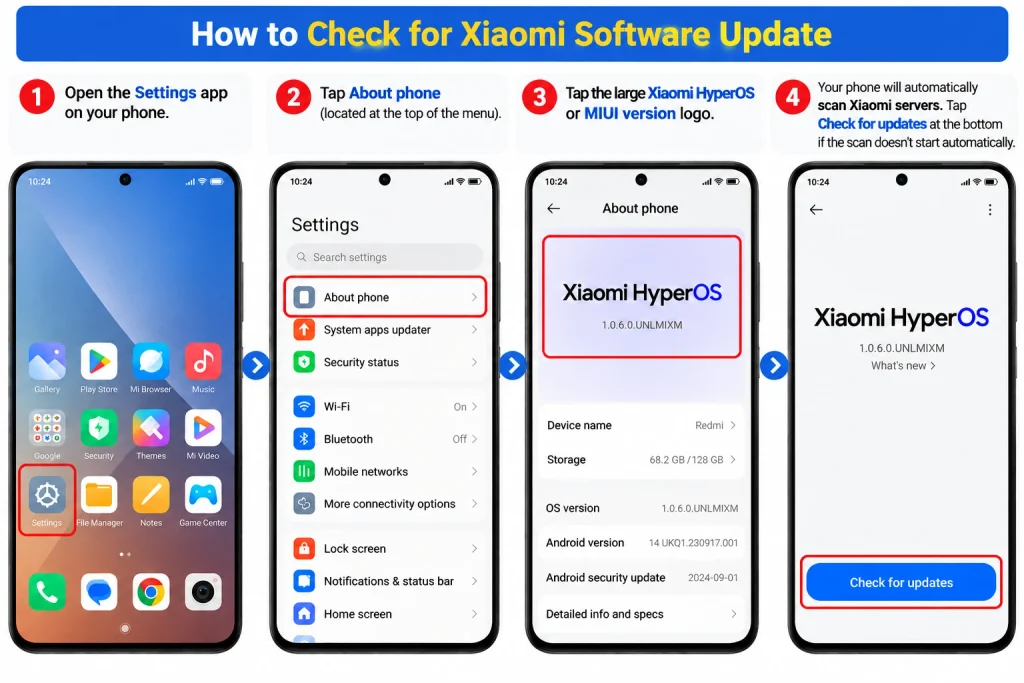
Follow these steps to manually trigger an Over-The-Air (OTA) update check:
- Open the Settings app on your phone.
- Tap About phone (located at the top of the menu).
- Tap the large Xiaomi HyperOS or MIUI version logo.
- Your phone will automatically scan Xiaomi servers. Tap Check for updates at the bottom if the scan doesn’t start automatically.
- If an update is available:
- Review the changelog to see what’s new.
- Tap Download update.
- Once downloaded, tap Reboot now to apply the installation.
Important: Keep your phone connected to a stable Wi-Fi network and ensure your battery is at least 40–50% charged before starting the installation to prevent accidental shutoffs during firmware flashing.
How to Enable Automatic Updates on Xiaomi
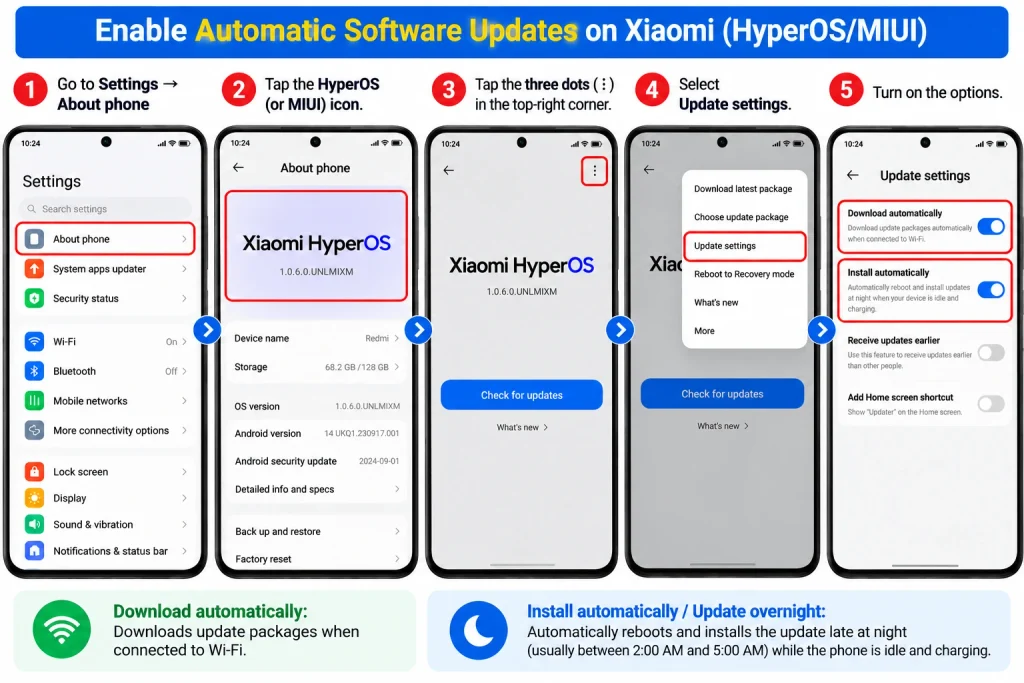
If you prefer your phone to stay updated in the background without manual checks, enable automatic installation:
- Go to Settings → About phone.
- Tap the HyperOS (or MIUI) icon.
- Tap the three dots (⋮) in the top-right corner.
- Select Update settings.
- Toggle on the following options:
- Download automatically: Downloads packages when connected to Wi-Fi.
- Install automatically / Update overnight: Automatically reboots and installs the update late at night (usually between 2:00 AM and 5:00 AM) while the phone is idle and charging.
💡 Related Read: Check the Xiaomi Android 17 (HyperOS 4) Release Date & Eligible Device List to see when your model receives the next upgrade.
How to Manually Install Updates (Unlocking Hidden Updater Features)
Often, Xiaomi rolls out updates in waves. If a recovery ROM file has been officially released for your model but hasn’t arrived over the air, you can install it manually using Xiaomi’s built-in package updater:
Step 1: Unlock Advanced Update Features
- Go to Settings → About phone.
- Tap the HyperOS / MIUI logo screen.
- Tap repeatedly on the large HyperOS or MIUI number/logo (7 to 10 times).
- A toast message will appear at the bottom: “Additional update features are on.”
Step 2: Choose Update Package
- Download the official, signed recovery ROM (
.zip) specifically made for your exact device model and region (Global, EEA, India, etc.). - Tap the three dots (⋮) in the top-right corner.
- Tap Choose update package.
- Navigate to your internal storage, select the downloaded
.zipfile, and let the system verify and install it.
Understanding Xiaomi Update Types
Not every software notification contains a full Android overhaul. Here is a breakdown of what each update means:
| Update Type | What It Does | Frequency |
|---|---|---|
| HyperOS / MIUI Update | Updates Xiaomi’s custom user interface, system animations, lock screen customization, and system app integrations. | Multiple times per year |
| Android OS Upgrade | Major core upgrade (e.g., upgrading from Android 14 to Android 15). Changes low-level permissions, privacy settings, and core Google APIs. | Typically once a year (for supported devices) |
| Google Security Patch | Patches discovered system vulnerabilities. Can be integrated into HyperOS updates or delivered as separate monthly/bimonthly patches. | Monthly / Bi-monthly |
| System Apps Updater | Updates stock Xiaomi apps (Gallery, Camera, Security, Mi Launcher) via Settings → System apps updater without requiring a full phone restart. | Weekly / Ongoing |
Why Is Your Xiaomi, Redmi, or POCO Update Not Showing?
If friends with the exact same phone have received an update but your device says “No updates available”, here is why:
1. Phased / Batched Rollouts (Mi Pilot Program)
Xiaomi releases updates in phases. They first push updates to Mi Pilot testers (public beta users). If no critical bugs are reported within 1–2 weeks, the update gradually expands to 10%, 30%, and finally 100% of global users.
2. Regional ROM Discrepancies
Xiaomi phones are divided into regional software channels:
- Global (MI)
- European Economic Area (EEA / EU)
- India (IN)
- Taiwan (TW) / Indonesia (ID)
An update released for the Indian variant of a Redmi Note model might take several weeks to appear on the European or Global variant due to regional carrier and regulatory approvals.
3. Your Phone Has Reached End-of-Support (EOS)
Xiaomi provides between 2 to 4 years of Android updates and security patches depending on the model tier (flagships receive longer support than budget Redmi C-series devices). When a device reaches End-of-Life, it stops receiving OTA updates. You can verify your phone’s status on the official Xiaomi Security Center End-of-Support list.
4 Working Fixes When a Xiaomi Update Fails or Gets Stuck
If an update download freezes, gets stuck during installation, or returns an error message:
Fix 1: Clear the Cache and Data of the Updater App
A corrupt temporary file in the system updater will stop new downloads.
- Open Settings → Apps → Manage apps.
- Tap the three dots at the top right and select Show all apps.
- Search for Updater and tap it.
- Tap Clear data at the bottom and select Clear cache (and Clear all data if needed).
- Restart your phone and check for updates again.
Fix 2: The “Region Change” Trick
If an update is live globally but delayed in your specific country, changing your system region can trigger the OTA notification:
- Go to Settings → Additional settings → Region.
- Temporarily switch to a region where updates roll out early (e.g., India, Singapore, or Switzerland).
- Return to About phone and tap Check for updates.
- Once the update installs, you can change your region back without losing any personal data.
Fix 3: Free Up at Least 10 GB to 15 GB of Storage
A system update package might be 4 GB to 6 GB in download size, but during decompression and background installation, Android duplicates system partitions. If your device has less than 15% free internal storage, the update will pause or fail verification.
Fix 4: Fix “Can’t verify update package” Error
If manual flashing throws this error:
- Ensure you didn’t download an update meant for a different region (e.g., trying to install an EEA ROM on a Global phone).
- Check if the update is restricted to Mi Pilot testers. If it is, you must wait until the public stable version is unlocked.
Pre-Update Safety Checklist
Before initiating any major operating system upgrade:
- Back up essential files: Sync photos and documents to Google Drive, Xiaomi Cloud, or copy them to a computer.
- Charge battery: Keep battery above 50% or plug the device into its charger.
- Check Wi-Fi stability: Avoid downloading updates on weak public networks or metering connections.
- Do not force restart: Never hold down the power button while the phone displays the updating gear/progress wheel. Interrupting partition writing can cause a bootloop.
Check If Your Xiaomi Phone Will Get Future Updates
Type your phone model below to find out instantly if your phone is still getting updates or has stopped receiving them.
📋 Browse Complete List of Discontinued Devices (200+ Models) ▼
Xiaomi / Mi Series
Redmi Series
POCO Series
Want to Update Xiaomi Manually?
If the latest HyperOS or MIUI update is not showing on your phone, learn how to manually install the official update on Xiaomi, Redmi, and POCO devices using different methods.
Read the Manual Update GuideOfficial Xiaomi Support Resources
Always source official information and firmware directly from verified Xiaomi channels:
- Xiaomi Global Official Support – Official hardware guides and warranty assistance.
- Xiaomi Security Center & EOS Policy – Official list of supported devices and declared End-of-Life dates.
🔍 How to Check Your Exact Model:
Because Xiaomi updates its discontinued list monthly, always verify your model on the official database:
👉 Check Xiaomi’s Official Live EOL Product List
Frequently Asked Questions (FAQ)
How often do Xiaomi, Redmi, and POCO phones receive updates?
Flagship models (Xiaomi 13, 14, 15 series) typically receive security patches every 1 to 2 months and up to 4 major Android version updates. Mid-range Redmi Note and POCO devices usually receive updates every 2 to 3 months for up to 2–3 years.
Will updating my Xiaomi phone delete my photos or data?
No. Standard OTA system updates do not wipe personal files, contacts, or photos. However, backing up your data beforehand is always recommended to protect against rare update crashes or corrupted installations.
Can I downgrade my HyperOS or MIUI version?
Downgrading to an earlier Android version through standard system settings is not supported. Doing so requires an unlocked bootloader, a computer, and the Mi Flash Tool. Note that downgrading without proper precautions can trigger Xiaomi’s anti-rollback protection and brick your phone.
What is the difference between POCO HyperOS and Xiaomi HyperOS?
Both share the exact same underlying architecture, security codebase, and features. The only difference is the default home screen launcher: POCO devices use the POCO Launcher (which features an app drawer by default and circular icon layouts), while Xiaomi and Redmi use the standard system launcher.
Has Your Xiaomi Phone Reached End-of-Support (EOL)?
If your phone stops receiving updates while newer models continue to receive them, your device may have reached End of Life (EOL) or End of Support (EOS).
Xiaomi maintains an official EOL list for phones that have completed their software lifecycle. Once a device is added to this list:
- It will no longer receive HyperOS or Android version upgrades.
- It will no longer receive monthly Google security patches.
- Xiaomi’s security response team stops patching newly discovered vulnerabilities for that model.
Xiaomi’s General Update Lifespan:
- Xiaomi Flagships (13, 14, 15 Series): 4 major Android updates & 5 years of security patches.
- Redmi Note & POCO X/F Series: 2 to 3 Android updates & 3 to 4 years of security patches.
- Budget Redmi (A and C Series): 1 to 2 Android updates & 2 to 3 years of security patches.
Notable Popular Devices Now on the EOL List:
(If you own one of these, your device is running its final official software version)
- Mi Series: Mi 9 series, Mi 10 series, Mi 10T / 10T Pro, Mi 11 Lite (4G).
- Redmi Series: Redmi Note 9 series, Redmi Note 10 (standard), Redmi 9 / 9A / 9C, Redmi K30 series.
- POCO Series: POCO F1, POCO F2 Pro, POCO X2, POCO X3 / X3 NFC, POCO M2 / M3.