
Waiting for an official software update to reach your phone can test your patience. You can now update MIUI manually in your smartphone easily. Xiaomi rolls out updates in staggered batches, which means someone with the exact same phone model might receive the new HyperOS or MIUI update weeks before you do.
The good news is that you do not have to wait. You can download the official update file yourself and install it manually in just a few minutes. Best of all, if you use the standard updater method, your photos, apps, messages, and files remain completely safe.
In this guide, we walk you through every genuine and safe method to manually update your Xiaomi, Redmi, or POCO device to the latest official Xiaomi HyperOS or MIUI version, ordered from the easiest, zero-risk methods to advanced options.

First: Which Update File Do You Need?
Before downloading any firmware, it is important to know which file format fits your situation:
- Recovery ROM (
.zipfile): This is what 95% of users need. It installs directly through your phone’s built-in updater app or via PC sideload. It is 100% official, preserves all your personal data, and does not require an unlocked bootloader. - Fastboot ROM (
.tgzfile): This is for advanced users, clean factory installations, or unbricking a phone stuck in a reboot loop. It requires a computer, the official Mi Flash Tool, and an unlocked bootloader.
Not sure which region or build your phone runs? Check our detailed Xiaomi ROM Selection Guide to verify your device region code (e.g., India IN, Global MI, Europe EU).
| Brand | All-in-One Firmware Hub | Direct Recovery ROM (.zip) | Direct Fastboot ROM (.tgz) |
|---|---|---|---|
| Mi | Xiaomi Firmware Hub | Xiaomi Recovery ROMs | Xiaomi Fastboot ROMs |
| Redmi | Redmi Firmware Hub | Redmi Recovery ROMs | Redmi Fastboot ROMs |
| POCO | POCO Firmware Hub | POCO Recovery ROMs | POCO Fastboot ROMs |
Quick Safety Checklist Before Updating
- Charge your phone: Ensure your battery level is above 50% so the device does not turn off mid-installation.
- Check storage space: Keep at least 10 GB to 15 GB of free internal storage available to download and unpack the firmware package.
- Match your region: If your phone is an Indian unit (
IN), downloading a Global (MI) or European (EU) package will fail verification. Always download the build matching your region code. - Take a backup: While normal manual updates do not erase data, keeping a quick backup to Xiaomi Cloud or Google Drive is always smart practice.
Method 1: The Quick Setting Tweak (Trigger Official OTAs Faster)
Before manually downloading large files, try these two built-in settings adjustments that frequently pull the latest update right away.
Option A: Turn On “Receive Updates Early”
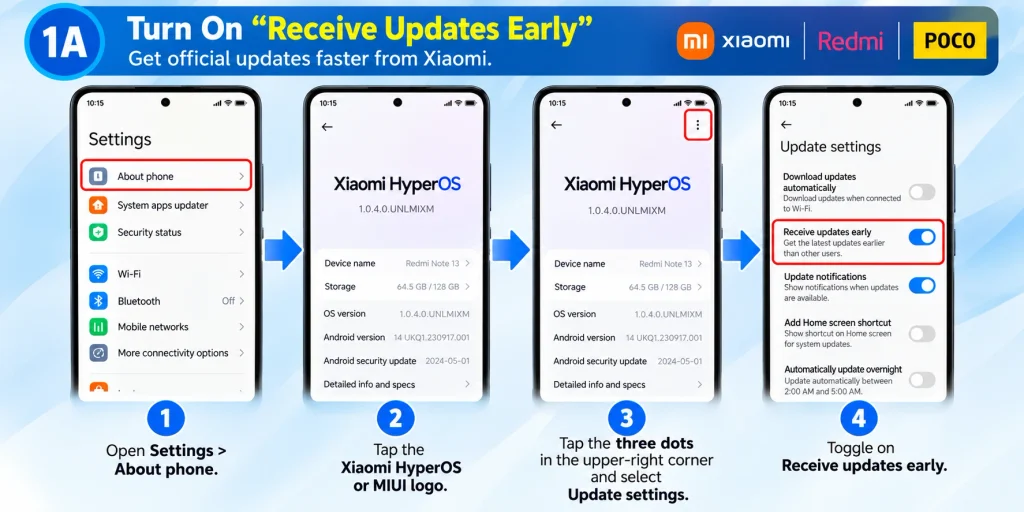
- Open Settings > About phone.
- Tap the Xiaomi HyperOS or MIUI logo.
- Tap the three dots in the upper-right corner and select Update settings.
- Toggle on Receive updates early. This registers your phone in priority testing batches for official stable releases.
Option B: The Region Switch Shortcut
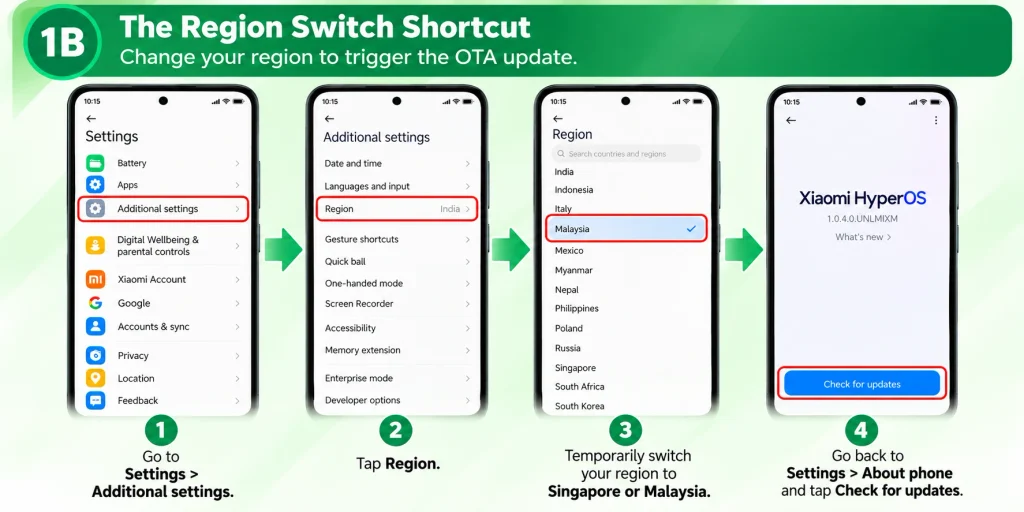
Xiaomi often releases updates in specific international markets first. Temporarily changing your region can trigger the OTA update immediately without affecting your apps or data:
- Go to Settings > Additional settings > Region.
- Temporarily switch your region to Singapore or Malaysia.
- Head back to Settings > About phone > Check for updates.
- If the update appears, download and install it normally. Once completed, you can change your region back to India or your home country.
Method 2: Update Using “Choose Update Package” (Most Popular & No PC Needed)
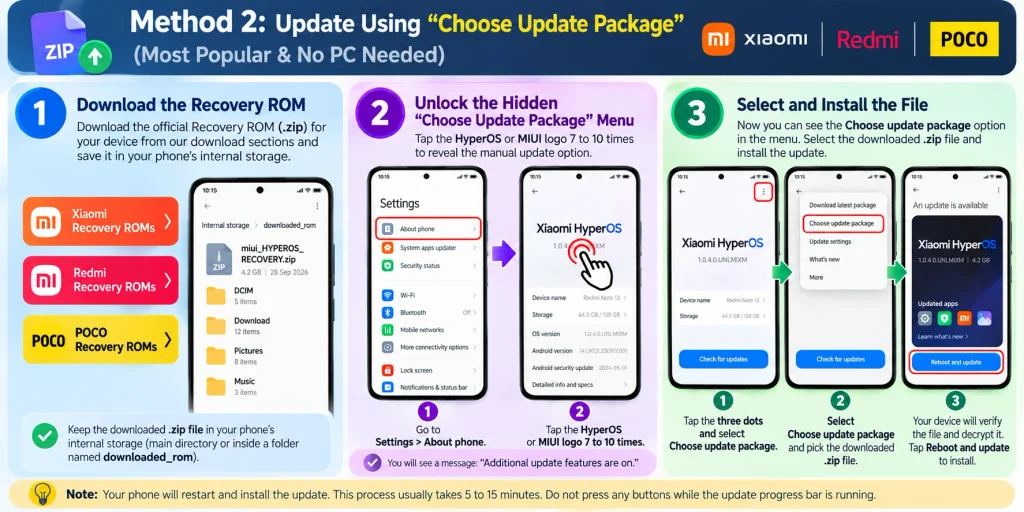
If the OTA update has not arrived automatically, this is the most reliable manual method. It installs directly on your phone, keeps all your data intact, and works on completely locked bootloaders.
Step 1: Download the Recovery ROM
Download the official Recovery ROM (.zip) for your device from our download sections: Xiaomi Recovery ROMs, Redmi Recovery ROMs, or POCO Recovery ROMs. Keep the downloaded file in your phone’s internal storage (in the main directory or inside a folder named downloaded_rom).
Step 2: Unlock the Hidden “Choose Update Package” Menu
Xiaomi keeps the manual update button hidden by default. Here is how to reveal it:
- Open Settings > About phone.
- Tap the large HyperOS or MIUI logo.
- Tap the logo continuously 7 to 10 times.
- A notification will appear at the bottom: “Additional update features are on.”
Step 3: Select and Install the File
- Now tap the three dots in the upper-right corner.
- Select the newly revealed option: Choose update package.
- Navigate to your internal storage and select the downloaded
.zipfirmware file. - Your device will verify the file with Xiaomi servers and decrypt the package.
- Tap Reboot and update.
Your phone will restart and install the update. This process generally takes between 5 and 15 minutes. Do not press any buttons while the update progress bar is running.
Method 3: Update via Xiaomi Mi Assistant (Best If Phone Won’t Boot Normally)
If your phone updater gives you verification errors or your device is stuck on the boot screen, you can install the update via computer using Xiaomi’s official recovery assistant.
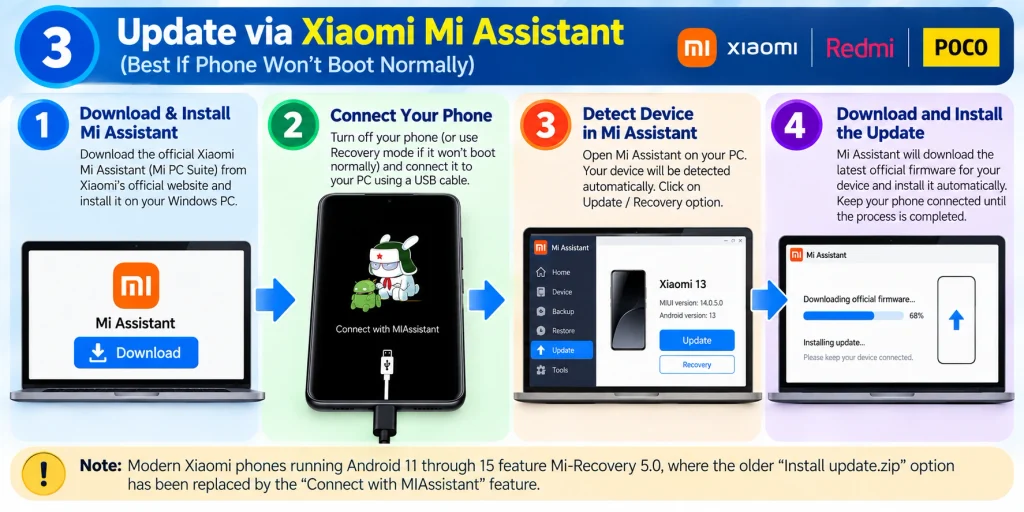
(Note: Modern Xiaomi phones running Android 11 through 15 feature Mi-Recovery 5.0, where the older “Install update.zip” option has been replaced by the “Connect with MIAssistant” feature.)
What You Need:
- A Windows PC with the official Xiaomi Mi Assistant (Mi PC Suite) installed.
- The official Recovery ROM (
.zip) downloaded to your computer (Xiaomi | Redmi | POCO).
Step-by-Step Instructions:
- Turn off your Xiaomi phone.
- Press and hold Power + Volume Up together until the Mi-Recovery screen appears.
- Use the Volume rocker to highlight Connect with MIAssistant, then press the Power button to select it.
- Connect your phone to your PC with a USB cable.
- Open Mi Assistant on your PC; the tool will recognize your connected phone.
- Select your downloaded
.zipfile and click Flash (Keep User Data). - Wait for the progress to reach 100%. The phone will restart automatically into your updated system.
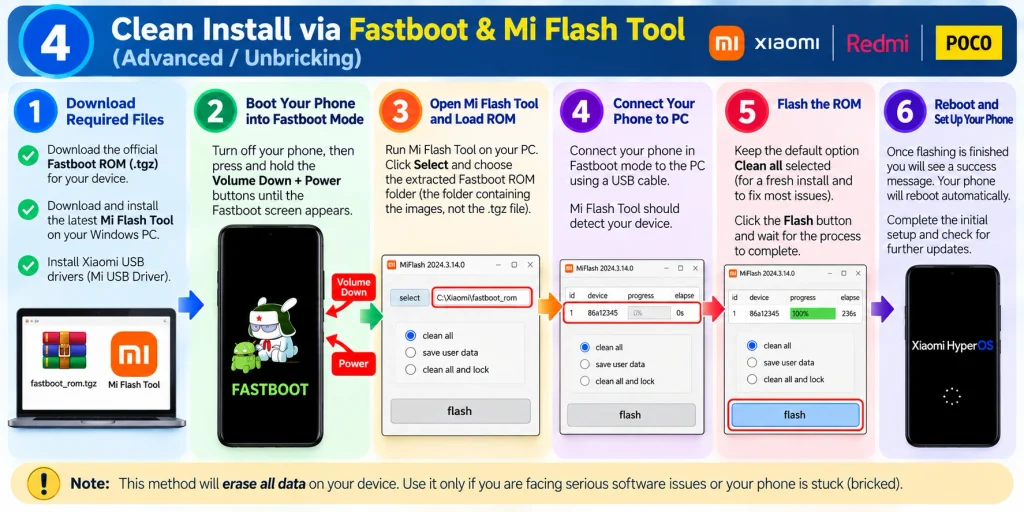
Method 4: Clean Install via Fastboot & Mi Flash Tool (Advanced / Unbricking)
If you are experiencing serious system glitches, upgrading across multiple major versions, or recovering from a software brick, flashing a Fastboot ROM (.tgz) gives you a clean, factory-fresh installation.
- Prerequisite: An unlocked bootloader. Follow our tutorial on How to Use the Official Mi Unlock Tool.
- Software: Download and install the Official Mi Flash Tool on your Windows PC.
- Firmware: Download your device’s Fastboot package: Xiaomi Fastboot | Redmi Fastboot | POCO Fastboot.
Step-by-Step Instructions:
- Extract the downloaded
.tgzfile on your PC using 7-Zip until you see a folder containing files likeflash_all.bat. - Put your phone into Fastboot Mode: Turn it off, then press and hold Power + Volume Down until the FASTBOOT screen appears.
- Connect your phone to your computer via USB.
- Open Mi Flash Tool as administrator, click Select, and browse to the extracted ROM folder.
- Click Refresh to verify your connected device ID.
- At the bottom right of Mi Flash Tool, choose clean all (this performs a fresh installation and wipes data). Avoid choosing “clean all and lock” if you are flashing cross-region firmware.
- Click Flash. Once the status shows “success”, your phone will restart into the updated software.
Method 5: Flashing via Custom Recovery (TWRP / OrangeFox)
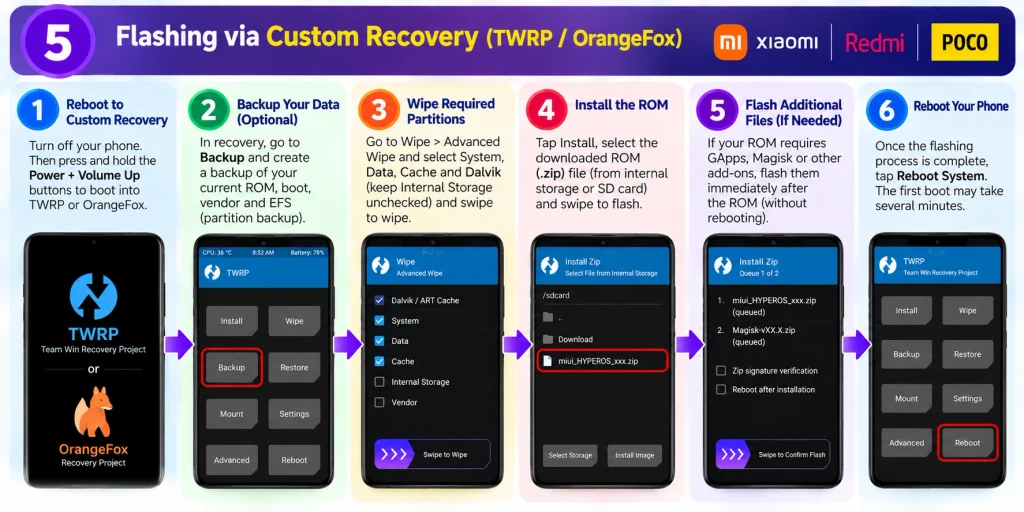
For power users who already have root access or a custom recovery installed on their phone:
- Boot into TWRP by holding Power + Volume Up.
- Tap Install, locate your downloaded official Recovery ROM
.zip, and swipe to confirm flash. - Wipe Dalvik/Cache and reboot your system.
Detailed guide: How to Install Any TWRP Recovery on Xiaomi & Redmi Devices.
Troubleshooting: How to Fix “Can’t Verify Update” Errors
When updating manually through the built-in updater, Xiaomi’s servers run security checks on the file. Here is how to fix the most common verification errors:
1. “Can’t verify update: You’re not authorized to download this release”
- Cause: The firmware build you downloaded is currently in Mi Pilot / Beta status. Xiaomi has only authorized it for registered tester accounts.
- Fix: Wait 1 to 2 weeks for Xiaomi to transition the build to “Public Stable”, or apply for beta tester access through the official Xiaomi Community app.
2. “Can’t verify update: Sorry, flash to this stable version is not allowed”
- Cause: You are either trying to downgrade to an older version (which is blocked by anti-rollback protection) or attempting to install a ROM from a different country.
- Fix: Check your current version in Settings > About phone. Ensure the region code matches (e.g.,
UNINXMrequires an IndianINROM). Cross-region updates cannot be done via the standard updater.
3. “Can’t verify update: Other reason”
- Cause: The
.zippackage was partially downloaded or corrupted during transfer. - Fix: Go to Settings > Apps > Manage apps > Updater > Clear Data. Delete the broken file and re-download it over a stable Wi-Fi connection.

Frequently Asked Questions
Will updating manually delete my photos and apps?
No, not when using Method 1, Method 2, or Method 3. Installing an official Recovery ROM preserves all your personal data, apps, and photos. Only Fastboot flashing (Method 4) with the “clean all” option wipes internal storage.
Can I manually update from MIUI 14 to Xiaomi HyperOS?
Yes. If Xiaomi has released HyperOS for your device model, you can download the official HyperOS Recovery ROM and install it directly over MIUI 14 using the “Choose update package” option.
Do I need to unlock my bootloader to update manually?
No. Standard updates via the phone’s Updater app or Mi Assistant work on completely locked bootloaders. An unlocked bootloader is only needed if you are using Fastboot flashing or custom recoveries.
What is the difference between a Recovery ROM and a Fastboot ROM?
A Recovery ROM comes as a .zip file designed for quick updates directly on the phone without data loss. A Fastboot ROM comes as a .tgz file designed for PC-based flashing to repair system software or perform a complete factory wipe.
Official Xiaomi Tools & Useful Downloads
Verified firmware hubs, flashing tools, and essential guides for Xiaomi, Redmi, and POCO.
Mi Flash Tool (All Versions)
Official utility to flash Fastboot ROMs (.tgz), fix soft-bricks, and perform clean installs via PC.
Download Mi Flash Tool →Mi Unlock Tool
Official utility to unlock the bootloader before installing custom recoveries or fastboot packages.
Get Mi Unlock Tool →Xiaomi Stock Firmware Hub
Complete repository of Recovery (.zip) and Fastboot (.tgz) ROMs for all Mi and Xiaomi flagships.
Browse Xiaomi Firmware →Redmi Stock Firmware Hub
Official HyperOS and MIUI stock firmware downloads for all Redmi Note, K-series, and budget models.
Browse Redmi ROMs →POCO Stock Firmware Hub
Latest official recovery and fastboot firmware packages for POCO F, X, M, and C-series phones.
Browse POCO ROMs →ROM Selection & Region Guide
Learn how to decode firmware version letters (IN, MI, EU) to prevent verification errors and bootloops.
Read ROM Guide →
My system is already upgraded and updated but i am not able to login into paytm using mobile app
I am Able to use web version
Try to uninstall and reinstall the Paytm app. As well as cross check mobile number connected with UPI.
Paytm chalu nahin ho raha hai.
Yes
Paytm chalu nhi ho rha hai
As suggested by paytm team over call, I tried to update my MIUI version. This is to inform you that, it is already updated. Still I am unable to login in paytm. “No sim card found” this error is showing.
Yes same issue
Same issue
As suggested by paytem team over call, I tried to update my miui version. This is to inform you that it is already updated still l am unable to login in paytem no sim card found this error is showing.
I am unable to login Paytm Mobile app
App is always show your sim card is not found on your device
You can CLICK HERE to fix SIM card is not found issue while using Paytm app.
Sim card is not found
Same problem unable to login Paytm mobile
You can visit Paytm not working post to find the complete resolution.
PLEASE SIR I AM NO SAMAJH NAHI RAHA HU
I’m loss my Mobile
Paytem not login
Paytm not login
I am not login paytm ni sim card your device
You can read our article on how to fix PayTm login issues in Xiaomi devices.
12.5.1 hai
So 12.5.3 me koi different hai kya
Paytm mai number nahi login hota, number dalte to issue not bata raha
My MIUI 12.5
12.5.1.0
Yes same issue
My paytm not loggin plz help mee
Mera nomber kho gaya hai mujhe apna mobail nomber chang karna hai
Unable to login my Paytm account in my phone.
Please login my account
Unable to login to my account please help
My old account recover 6375451057