
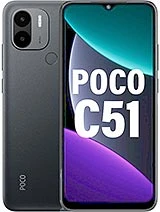
POCO C51 Specifications & Software Directory
Verified technical specifications, hardware profile, USB drivers, firmware ROMs, recovery files, and software downloads for POCO C51 (Codename: water). Access 2 verified packages including Fastboot ROMs across India, Russia builds up to latest version V14.0.24.0.TGOINXM.
🚀 Recommended Updates
Handpicked latest releases and critical updates for POCO C51.
Fastboot ROMs
LatestDownload POCO C51 Fastboot ROMs
Browse verified fastboot roms packages for POCO C51.
POCO C51 Fastboot ROMs
POCO C51 Fastboot ROMs
📋 POCO C51 Complete Technical Specifications
OEM & Lab Verified Specs| Hardware Specification | Technical Details & Parameter Values |
|---|---|
| Platform & Processing Architecture | |
| Chipset / SoC | MediaTek Helio G36 (12nm Octa-core High-efficiency Gaming Processor) |
| CPU Processor | Octa-core CPU (4x 2.2GHz Cortex-A53 + 4x 1.7GHz Cortex-A53) |
| GPU Graphics | PowerVR GE8320 (up to 680MHz) |
| Display & Physical Dimensions | |
| Display Panel | 6.52-inch HD+ Scratch-resistant Dot Drop Display (1600 x 720), 20:9 Aspect Ratio, 400 nits (typ), 120Hz Touch Sampling Rate, Night Light Mode |
| Body Dimensions & Weight | 164.9 x 76.75 x 9.09 mm, 192g (Premium Leather-feel Texture Back Design) |
| Camera & Imaging System | |
| Rear Camera Array | 8MP AI Dual Camera: 8MP Primary (f/2.0) + Auxiliary Depth Sensor (f/2.4), Dual LED Flash |
| Video Recording Capabilities | 1080p at 30fps, 720p at 30fps |
| Front Selfie Camera | 5MP Front Camera (f/2.2, Beautify & Portrait Mode) |
| Battery & Power Delivery | |
| Battery Capacity | 5000mAh (typ) Massive Battery (up to 589 hours standby, 30 hours calling) |
| Fast Charging Support | 10W Fast Charging (10W In-box Charger, Micro-USB) |
| Memory & Storage Variants | |
| RAM & Internal Storage |
|
| Connectivity & Wireless Networks | |
| Wireless & Ports | Dual 4G VoLTE, Wi-Fi 802.11 b/g/n (2.4GHz), Bluetooth 5.0, 3.5mm Headphone Jack, FM Radio (with headphones), Micro-USB |
| Audio & Multimedia | |
| Audio & Acoustic Architecture | Single Speaker, 3.5mm Headphone Jack |
| Security & Sensors | |
| Sensors & Biometrics | Rear-mounted Fingerprint Sensor, AI Face Unlock, Accelerometer |
| Operating System | |
| Launch Operating System | Android 13 (Go Edition) Clean Pure Android Experience (Guaranteed 2 years security updates) |
📱 POCO C51 Specifications & Profile
Verified Device Archive❓ Frequently Asked Questions – POCO C51
What are the core technical specifications of POCO C51?
The POCO C51 (codename: water) features verified technical specifications covering processor platform, display technology, battery capacity, camera setup, and hardware sensors indexed in the technical specifications directory on this page.
What is the hardware codename for POCO C51 and how do I verify it?
The hardware codename for POCO C51 is water. You can verify your device codename by booting into Fastboot mode and executing fastboot getvar product, or by checking your build properties under Settings > About Phone.
Which software versions and Android updates are compatible with POCO C51?
POCO C51 supports Xiaomi HyperOS and MIUI system software built on Android. Compatibility depends on regional hardware variants including Global, EEA (Europe), India, and China.
How do I install USB drivers for POCO C51 on Windows PC?
Download the verified USB driver package for POCO C51 from our directory, extract the archive, right-click the setup .inf file, and select 'Install'. This establishes stable Fastboot and ADB communication across Windows 11, 10, 8, and 7.
Where can I download stock firmware, Fastboot ROMs, or Recovery updates for POCO C51?
For dedicated stock firmware packages, Fastboot (.tgz) flash files, Recovery (.zip) updates, and Anti-Rollback (ARB) flashing guides, visit the POCO C51 Stock Firmware Hub →.
Looking for downloads for another device? Browse all Poco devices