
If you have important data synced with your Xiaomi Cloud account, you may want to access it from another phone or download it to a computer. This can be useful if your Xiaomi phone is lost, damaged, reset, or if you are moving to another device.
Last updated: October 2026
You can access Xiaomi Cloud, also commonly called Mi Cloud, from a web browser through the official Xiaomi Cloud website:
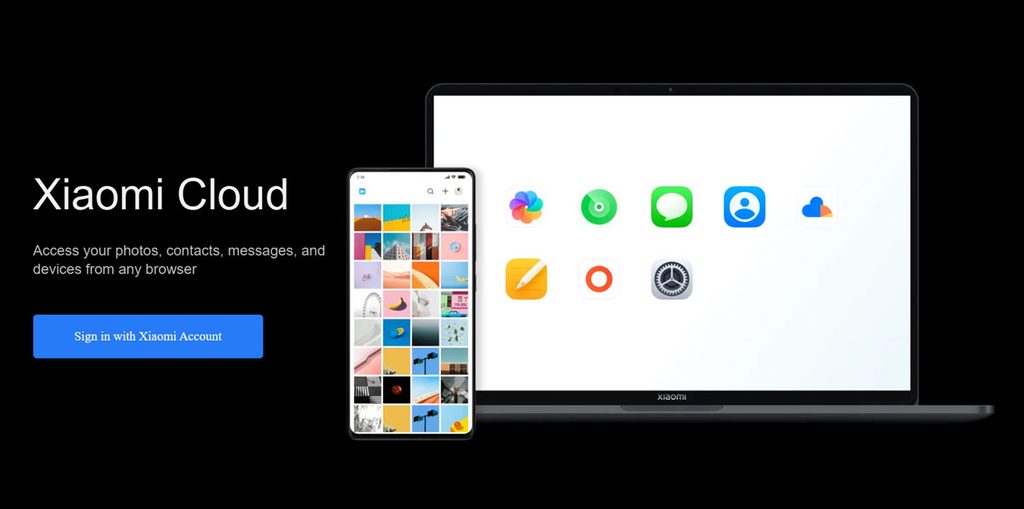
You need to sign in with the same Xiaomi Account that was being used on your phone.
Important: Xiaomi Cloud services and available data can vary by country, account, device and service. In particular, Xiaomi discontinued Xiaomi Cloud Gallery synchronization in India in 2023. Therefore, the old instructions for downloading all Xiaomi Cloud photos are no longer applicable to Indian users.
How to access Mi Cloud data from a browser
You do not need to have your Xiaomi phone with you to access the Xiaomi Cloud website. You can use a computer, tablet or another phone with a supported web browser.
Step 1: Open Xiaomi Cloud
Open your browser and go to:
This is Xiaomi’s official Xiaomi Cloud website.
Step 2: Sign in with your Xiaomi Account
Choose the option to sign in with your Xiaomi Account.
Enter the account details associated with your Xiaomi phone.
Depending on your account’s security settings, Xiaomi may ask you to complete an additional verification step.
If you have forgotten your password, use Xiaomi’s account recovery option rather than using an unofficial Mi Cloud APK or third-party website.
Step 3: Check the available Xiaomi Cloud services
After signing in, the services displayed in Xiaomi Cloud can vary depending on your account and region.
The current web interface can include services such as:
- Contacts
- Messages
- Notes
- Recordings
- Mi Drive
- Find device
- Settings
- Other account-specific cloud services
Xiaomi describes i.mi.com as the official website for accessing and managing data that has been synchronized to Xiaomi Cloud.
How to download data from Mi Cloud
There is an important difference between accessing your Xiaomi Cloud data and downloading your entire Xiaomi phone as one backup file.
Xiaomi Cloud does not necessarily provide one universal “Download everything” button for every type of data. The available actions depend on the particular cloud service and your region.
Therefore, open each available service and look for its download, export, save or other available data-management option.
Download files from Mi Drive
If files are available in Mi Drive, open Mi Drive after signing in.
- Select the file or files you need.
- Look for the available download option.
- Save the files to your computer or another device.
- Check the downloaded files before deleting anything from Xiaomi Cloud.
The current Xiaomi Cloud web interface lists Mi Drive among its available services.
Save contacts and other personal data
Xiaomi Cloud can synchronize personal information such as contacts, messages, notes, call history and recordings, depending on the services enabled on the device and the account.
Xiaomi’s current privacy documentation confirms that Xiaomi Cloud can process and synchronize data such as messages, call history, contacts, notes, browser information, Wi-Fi settings and recordings.
If you need a particular type of information, open the corresponding section in Xiaomi Cloud and use the options provided there.
If a service allows direct downloading or exporting, save the exported file to your computer.
If the web interface only allows you to view or manage the information, you may need to use the corresponding app or Xiaomi’s available data-access process instead.
Can I download all Xiaomi Cloud data at once?
Not necessarily. This is one of the most important points to understand before following old Mi Cloud tutorials.
Xiaomi Cloud contains different types of synchronized data, and the web interface handles them through separate services. The available download or export options can therefore differ between Contacts, Messages, Notes, Recordings, Mi Drive and other services.
If your goal is to create a complete backup before changing phones, do not assume that downloading one item from i.mi.com creates a complete backup of your Xiaomi phone.
Also remember that Xiaomi Cloud is a synchronization service. Only data that was actually synchronized to your Xiaomi Account can be available in the cloud.
What if my Xiaomi phone is lost or damaged?
If your phone is lost or no longer working, you can still try accessing Xiaomi Cloud from another device.
Go to:
Sign in with the Xiaomi Account that was connected to the lost phone.
You may then be able to access the cloud data that had already been synchronized before the phone was lost or damaged.
Important limitation
If a particular contact, note, message, recording or other file was stored only on the phone and had not been synchronized with Xiaomi Cloud, signing in through the website will not magically recover it.
Xiaomi also states that users are responsible for maintaining their own backups of important content.
How to find a lost Xiaomi phone using Mi Cloud
Xiaomi Cloud also provides a Find device feature.
If the required Find device functionality was enabled and the device can communicate with Xiaomi’s service, you can use Xiaomi Cloud to try to locate or secure the phone.
Steps
- Open Xiaomi Cloud in a browser.
- Sign in with the Xiaomi Account connected to the missing phone.
- Open Find device.
- Select the relevant device if more than one device is connected.
- Follow the available options shown by Xiaomi.
Depending on the device and its current connection status, available actions can include locating, securing or remotely managing the device.
Xiaomi describes Find device as a feature that can help locate, lock or erase a device remotely.
What happened to Mi Cloud photos?
This is where many old Mi Cloud articles are now misleading.
Xiaomi previously allowed Gallery photos and videos to be synchronized to Xiaomi Cloud in many regions. However, Xiaomi discontinued Xiaomi Cloud Gallery synchronization as part of its transition to Google Photos.
For India, Xiaomi’s published timeline placed India in Group 1. The Gallery-cloud transition ended in 2023, and Xiaomi stated that the old Gallery data would be deleted after the applicable deadline.
Therefore, if you are in India and looking for an old tutorial saying:
“Log in to Mi Cloud and download all your photos from Gallery”
that information should not be treated as a current method.
Where should Xiaomi photos be backed up now?
For current photos and videos, use a supported photo backup service such as Google Photos or another storage service that you control.
Do not rely on an old Mi Cloud Gallery tutorial when moving to a new phone.
Mi Cloud data may not be available if synchronization was disabled
Another common reason for missing data is that the required synchronization service was never enabled.
For example, Xiaomi Cloud can synchronize different categories of data separately. Xiaomi’s documentation explains that users can control individual synchronization services rather than automatically placing every item from the phone into the cloud.
Before assuming that your data has been lost, check:
- Whether you are using the correct Xiaomi Account.
- Whether the required cloud synchronization service was enabled.
- Whether the data was actually synchronized before the phone stopped working.
- Whether you are checking the correct Xiaomi Cloud section.
- Whether the service is available for your region and account.
Can I access Xiaomi Cloud from another phone?
Yes.
You can open Xiaomi Cloud from a browser on another phone, tablet or computer and sign in with your Xiaomi Account.
You do not necessarily need another Xiaomi phone just to access the Xiaomi Cloud website.
However, the amount of data you can access depends on what was synchronized to the account and which Xiaomi Cloud services are available for your region.
Can I transfer Xiaomi Cloud data to a new phone?
In some cases, yes.
If the data is synchronized with your Xiaomi Account, signing in to the same account on a supported Xiaomi device can allow supported cloud data to synchronize again.
However, Xiaomi Cloud should not be treated as a complete clone of your old phone.
Apps, app data, local files, photos, settings and other information may use different backup or synchronization methods.
Before resetting or selling your old phone, make a separate backup of important information.
Mi Cloud vs phone backup
These two things are often confused.
Xiaomi Cloud
Xiaomi Cloud is mainly used for cloud synchronization and management of supported data.
Depending on the service and region, this can include:
- Contacts
- Messages
- Notes
- Recordings
- Call history
- Other supported personal data
- Files available through supported cloud services
- Find device functionality
Xiaomi’s documentation lists multiple categories of data that can be synchronized through Xiaomi Cloud.
Local phone backup
A local backup is stored on the phone or another storage device rather than relying entirely on Xiaomi Cloud.
Xiaomi also documents local backup options that can be copied to a computer or USB storage.
For important data, having both a cloud backup and a separate local copy is safer than relying on only one location.
Mi Cloud login is not working
If you cannot sign in to Xiaomi Cloud, try these steps:
1. Check the Xiaomi Account
Make sure you are using the same Xiaomi Account that was previously connected to the phone.
Using a different account can make your cloud data appear to be missing.
2. Reset the password if necessary
If you have forgotten the password, use Xiaomi’s official account recovery process.
Avoid entering your Xiaomi Account password on websites claiming to provide “Mi Cloud recovery” or “Mi Cloud download” services.
3. Try another browser
Use a current version of Chrome, Firefox or Edge.
Xiaomi’s current Cloud website itself recommends using an up-to-date browser.
4. Check your internet connection
A slow or unstable connection can prevent Xiaomi Cloud services from loading correctly.
5. Check whether the service is temporarily unavailable
If the login page opens but a particular Xiaomi Cloud service does not load, try again later and check Xiaomi’s service status where available.
What you should do before changing from Xiaomi to another phone
If you are moving from a Xiaomi phone to Samsung, OnePlus, Google Pixel, iPhone or another brand, do not simply sign out of your Xiaomi Account and reset the old phone.
First check your important data.
Recommended checklist
- Check your contacts.
- Back up important photos and videos.
- Check important notes.
- Save important recordings.
- Check messages if they are important to you.
- Copy important files to a computer or external storage.
- Make sure important data has finished synchronizing.
- Check Google Photos or your other photo backup service.
- Keep the old phone until you have confirmed that the important data is available on the new device.
Only after checking the backup should you factory-reset the old Xiaomi phone.
Frequently asked questions
Is Mi Cloud still available?
Yes. Xiaomi Cloud is still available through i.mi.com, although individual services and features can vary by region and account. The current web interface provides access to several cloud services, including Contacts, Messages, Notes, Recordings, Mi Drive and Find device.
Is Mi Cloud the same as Xiaomi Cloud?
Yes. Mi Cloud is the older and commonly used name for Xiaomi’s cloud service. Xiaomi currently uses the name Xiaomi Cloud on its website and documentation.
Can I download all my Mi Cloud data in one ZIP file?
There is no single universal download method that should be assumed to work for every Xiaomi Cloud account and every type of data. The available options depend on the cloud service, region and account.
For that reason, access the required section of Xiaomi Cloud and use the download or export option provided there.
Can I download old Xiaomi Cloud photos in India?
No longer through the old Xiaomi Cloud Gallery system. Xiaomi discontinued Gallery synchronization in India and completed the related transition in 2023. Old articles that provide current instructions for downloading Xiaomi Cloud Gallery photos in India are outdated.
Can I access Mi Cloud without my Xiaomi phone?
Yes, you can open i.mi.com from another phone, tablet or computer and sign in with your Xiaomi Account.
However, only data that was synchronized to that account and remains available through the relevant Xiaomi Cloud service can be accessed.
Can I recover data from a lost Xiaomi phone?
You may be able to recover data that had already been synchronized with Xiaomi Cloud. You can also use Find device to manage a supported lost device.
Data that existed only on the phone and was never synchronized or backed up may not be recoverable through Xiaomi Cloud.
Final thoughts
Xiaomi Cloud is still useful for accessing and managing supported Xiaomi data from a browser, but many old Mi Cloud tutorials are no longer accurate.
The safest approach is to open the official Xiaomi Cloud website, sign in with the correct Xiaomi Account, check the available services and save the specific data you need.
If you are moving to another phone, make a separate backup of your important photos, contacts, notes, messages, recordings and files before resetting the old device.
Do not rely on an old Mi Cloud tutorial that promises a complete download of everything stored on your Xiaomi phone. The available cloud services and download options can change by region and over time.
“When you log in to your account you can see all of your content available here. You can download all of your data from here.”
Not explained how. Makes the write up deceiving.
There’s no option to restore contacts and messages. How do we restore?
Ac
Yes. Same issue here. I can find all my contacts on cloud account but no option download. I tried all options. No use. Please help us here.
Go to option for export contacts and save that .Vcf file in your device then open google contacts and import contact option.. browse for that saved file in your device and then open it. you will get your data.
Is there an option to download mi notes?
How to restore poco lost mobile
after downloading asking password how can i unlock it
Yes same here
What is the password
Mettoo i need the password
After downloading it is asking for password i didn’t remember any password how to unlock it
MY RECORDINGS, I HAVE AROUND 300! AND THEY ARE NOT DOWNLOADING
so i clicked play when i was going through them and it says you need to download to play them, so i click the download button but no use. IT DOES NOT DOWNLOAD MY FILES. all my fies are shown but they wont play because they wont download. I AM GENUINELY CLUELESS AND I DONT HAVE ANY IDEA WHAT TO DO. I ABSOLUTELY CANNOT LOSE THOSE FILES PLEASE HELP ME.