
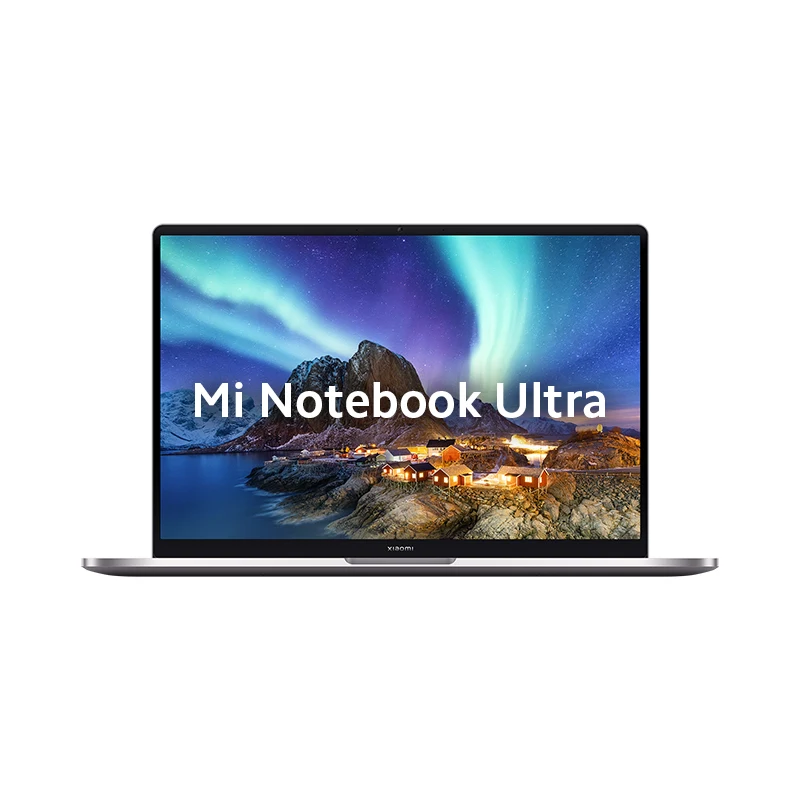
Mi Notebook Ultra Verified Power Management Downloads
Verified Power Management repository for Mi Notebook Ultra (Codename: a29). Access 2 verified packages across India builds up to latest version 1.0.
Download Mi Notebook Ultra Power Management
Browse verified power management packages for Mi Notebook Ultra.
Mi Notebook Ultra Power Management
Mi Notebook Ultra Power Management
- Installation Method: Extract the
.zippackage. Double-clickSetup.exeor right-click the.inffile and select "Install" under Windows Administrator privileges. - Windows Device Manager: Open Device Manager (
Win + X) to confirm the driver initializes cleanly with no yellow exclamation marks. - System Compatibility: Validated for Microsoft Windows 11 and Windows 10 (64-bit x64 architecture).
📊 Technical Specifications & Release Summary – Power Management
❓ Frequently Asked Questions – Power Management
How do I install or update Power Management on Mi Notebook Ultra?
Download the official Mi Notebook Ultra Power Management package (Version 1.0). Extract the archive, run Setup.exe or right-click the .inf file and select 'Install' with Administrator privileges. Restart your laptop if prompted.
Are these Power Management compatible with 64-bit Windows 11 and Windows 10?
Yes. The verified driver package for Mi Notebook Ultra is designed and validated for 64-bit (x64) versions of Microsoft Windows 11 and Windows 10.
How do I verify Power Management in Device Manager?
Press Win + X and open Device Manager. Locate the corresponding controller (e.g. Display adapters, Sound controllers, or Network adapters) and verify there are no yellow exclamation marks or errors.
Are these official factory drivers for Mi Notebook Ultra?
Yes. Every driver build is an authentic factory package sourced directly from official Xiaomi cloud repositories and verified with SHA-256 checksums.
📁 Mi Notebook Ultra Power Management Repository
Stock Media & Resource Archive
Dedicated repository indexing verified authentic Power Management assets for Mi Notebook Ultra (a29). All files are extracted directly from stock OEM system images and manufacturer documentation.
Looking for downloads for another device? Browse all Xiaomi devices