
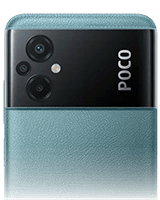
POCO M5 Recovery ROM Downloads (Stock .zip Update Packages)
Verified stock Recovery ROM update packages (.zip) for POCO M5 (Codename: rock). Access 4 verified packages for non-destructive updates via System Updater or Mi Recovery 5.0 across Europe (EEA), Global, Russia, Taiwan builds up to latest version OS1.0.5.0.ULUEUXM.
Download POCO M5 Recovery ROMs
Browse verified recovery roms packages for POCO M5.
POCO M5 Recovery ROMs
POCO M5 Recovery ROMs
POCO M5 Recovery ROMs
POCO M5 Recovery ROMs
- Locked Bootloader Supported: Stock Recovery packages (
.zip) are cryptographically signed by Xiaomi and install safely with a locked bootloader. - Branch Alignment: Ensure the downloaded build matches your installed regional branch (e.g. Global to Global, Europe to Europe) to prevent signature rejection.
- Updater Feature Unlock: In Settings > About Phone, tap the OS logo 7–10 times to unlock the hidden "Choose update package" option from the 3-dots menu.
📊 Technical Specifications & Release Summary – Recovery ROMs
❓ Frequently Asked Questions – Recovery ROMs
How do I install a Recovery ROM (.zip) on POCO M5 via built-in System Updater?
Copy the downloaded .zip package to your POCO M5 internal storage (e.g. /Download/ folder). Navigate to Settings > About Phone > Version Logo, tap the HyperOS/MIUI version logo 7 to 10 times to enable advanced update features, tap the top-right 3-dot menu, select 'Choose update package', select the .zip file, and confirm reboot.
Can I install POCO M5 Recovery ROM with a locked bootloader?
Yes. Stock Recovery ROMs (.zip) do not require an unlocked bootloader when installed through the built-in System Updater or Mi Recovery 5.0, provided the package matches your current installed regional branch (e.g. Global to Global, or India to India).
How do I use Mi Recovery 5.0 to sideload an update on POCO M5?
Power off your POCO M5 and hold Power + Volume Up until Mi Recovery 5.0 appears. Select 'Connect with MIAssistant', connect USB to PC, open a command prompt, and run: adb sideload <filename>.zip. The package will verify and flash automatically.
Does installing a Recovery ROM wipe personal data on POCO M5?
Standard incremental or full OTA upgrades installed via Recovery ROM generally preserve all personal apps, settings, and media. However, if you are downgrading or switching between major Android branches, creating a full backup is strongly advised.
📦 POCO M5 Recovery & OTA Installation Profile
Locked Bootloader SupportedDedicated directory indexing verified stock Recovery ROM packages (.zip) for POCO M5. Stock recovery archives are cryptographically signed by Xiaomi and install safely via the built-in HyperOS / MIUI System Updater or Mi Recovery 5.0 ADB sideloading without wiping personal data.
- Method 1: Built-in System Updater (Recommended): Copy the downloaded
.zippackage to your phone's internal storage. Open Settings > About Phone > Version Logo, tap the HyperOS/MIUI version logo 7 to 10 times to unlock additional update features. Tap the top-right 3-dots menu, choose "Choose update package", select the.zipfile, and confirm reboot. - Method 2: Mi Recovery 5.0 ADB Sideload (For Bootloops): Power off phone, hold Power + Volume Up until Mi Recovery appears. Select "Connect with MIAssistant", connect USB cable to PC, open terminal, and run:
adb sideload <filename>.zip. The package will flash and reboot automatically. - Zero Data Loss: Standard upgrades retain all personal apps, settings, photos, and messages intact.
Looking for downloads for another device? Browse all Poco devices