
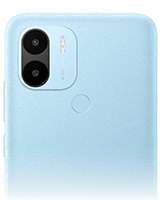
Redmi A1 Plus Fastboot ROM Downloads (Stock .tgz Flash Files)
Verified stock Fastboot ROM flash files (.tgz) for Redmi A1 Plus (Codename: ice). Access 6 verified packages for clean installation, factory reset, and unbricking via Xiaomi Mi Flash Tool across Europe (EEA), Global, Indonesia, Russia builds up to latest version V13.0.18.0.SGMEUXM.
Download Redmi A1 Plus Fastboot ROMs
Browse verified fastboot roms packages for Redmi A1 Plus.
Redmi A1 Plus Fastboot ROMs
Redmi A1 Plus Fastboot ROMs
Redmi A1 Plus Fastboot ROMs
Redmi A1 Plus Fastboot ROMs
Redmi A1 Plus Fastboot ROMs
Redmi A1 Plus Fastboot ROMs
- Bootloader Unlock Mandatory: Fastboot flashing writes raw image partitions directly to storage and strictly requires an unlocked bootloader via the Mi Unlock Tool.
- Script Safety: Always select
clean all(flash_all.bat) for clean updates or unbricking. NEVER selectclean all and lockif you are flashing Global or EEA ROM on hardware originally purchased in China mainland. - Host Stability: Maintain at least 50% battery charge on Redmi A1 Plus, connect to a native USB 2.0 rear motherboard port, and ensure verified Qualcomm QDLoader 9008 / Xiaomi Fastboot drivers are active.
📊 Technical Specifications & Release Summary – Fastboot ROMs
❓ Frequently Asked Questions – Fastboot ROMs
How do I flash a Fastboot ROM (.tgz) on Redmi A1 Plus using Mi Flash Tool?
To flash a Fastboot ROM on Redmi A1 Plus, first unlock the bootloader. Power off your phone, hold Power + Volume Down to enter Fastboot mode, and connect to your PC via USB. Extract the downloaded .tgz package using 7-Zip, launch Mi Flash Tool, select the extracted firmware folder, choose 'clean all' (flash_all.bat) at the bottom bar, and click Flash.
Do I need an unlocked bootloader to flash Redmi A1 Plus Fastboot ROMs?
Yes. Flashing Fastboot ROM images directly via Fastboot mode or Mi Flash Tool strictly requires an unlocked bootloader. If your bootloader is locked, you can install stock updates using the Recovery ROM (.zip) method via the built-in System Updater instead.
Will flashing Redmi A1 Plus Fastboot ROM wipe personal data?
Selecting 'clean all' (recommended for unbricking, clean reinstalls, or upgrading Android versions) will completely wipe internal storage. To retain files during minor updates, select 'save user data'. Never select 'clean all and lock' if you are flashing Global ROM on hardware originally purchased in China.
Which region Fastboot ROMs are available for Redmi A1 Plus?
We index verified Fastboot ROM packages for Redmi A1 Plus across stock regional variants including TAIWAN, GLOBAL, EUROPE, RUSSIA, INDIA, INDONESIA (latest build: V13.0.3.0.SGMTWXM).
⚡ Redmi A1 Plus Fastboot Engineering & Tooling Profile
Unlocked Bootloader RequiredDedicated engineering directory indexing verified stock Fastboot ROM archives (.tgz) for Redmi A1 Plus. Fastboot flashing writes raw image partitions directly to storage over the low-level Android Bootloader interface, serving as the definitive method for clean reinstalls, factory restorations, and soft-brick recovery.
- clean all (
flash_all.bat) [RECOMMENDED]: Fully flashes all partitions and formats user data. Recommended for upgrading Android versions, unbricking, or fixing system lag. - save user data (
flash_all_except_storage.bat): Updates system partitions while preserving user photos, contacts, and personal files. Only use when updating within the exact same regional branch. - clean all and lock (
flash_all_lock.bat) [CRITICAL WARNING]: Flashes all partitions and re-locks the bootloader. DO NOT USE if you are flashing a Global or European ROM on a device manufactured for the China market, as locking the bootloader on mismatched hardware creates an unrecoverable brick.
Looking for downloads for another device? Browse all Xiaomi devices