
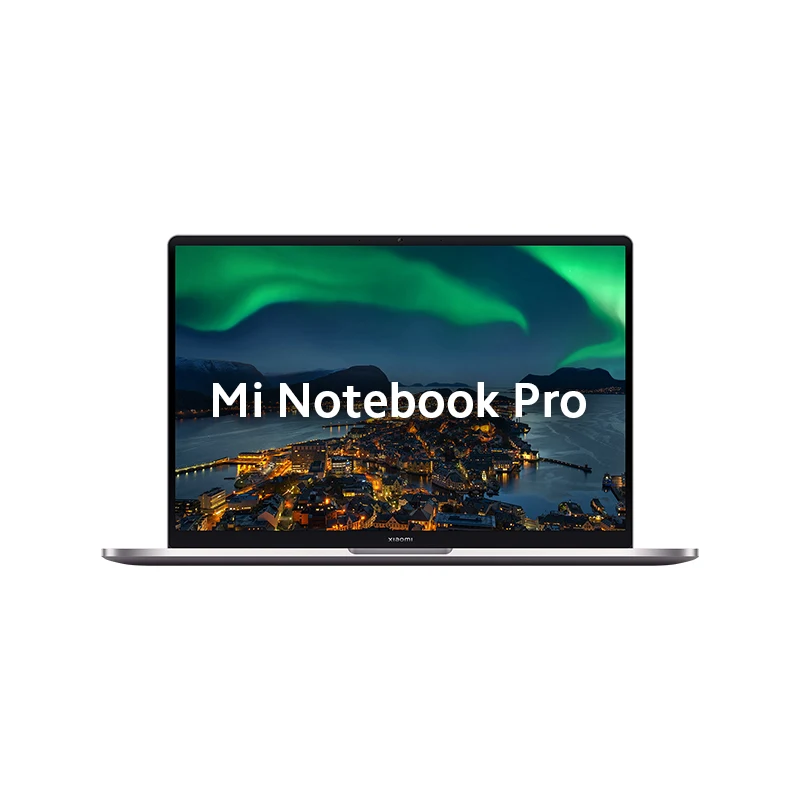
Mi Notebook Pro Nvidia-gfx Driver v1.0 Download
Direct verified Nvidia-gfx driver package for Mi Notebook Pro – Version v1.0.
The stock NVIDIA GeForce Graphics Driver package (Version 1.0) powers the discrete NVIDIA GPU on your Mi Notebook Pro. Built for Windows 11 64-bit, this driver package activates NVIDIA Optimus intelligent switching technology, enabling your laptop to run efficiently on integrated graphics during light tasks and automatically spin up the dedicated GPU for demanding video rendering, photo editing, CAD software, and 3D gaming.
Performance Features and Optimizations
- NVIDIA Optimus Power Efficiency: Dynamically routes graphics workloads to either the energy-efficient Intel processor or the high-performance NVIDIA GeForce GPU, optimizing both battery runtimes and compute performance.
- CUDA and OpenCL Compute Acceleration: Delivers hardware acceleration across professional creative suites including Adobe Premiere Pro, Photoshop, Blender, DaVinci Resolve, and Autodesk.
- DirectX 12 and Vulkan API Support: Ensures full compliance with modern game engines and graphical APIs with optimized frame pacing and minimal latency.
- NVIDIA Control Panel: Allows granular control over 3D settings, anisotropic filtering, power management modes (Prefer Maximum Performance), and preferred graphics processor assignments per application.
Installation Best Practices
- Make sure the Intel Graphics driver is already installed first, as NVIDIA Optimus pipelines its display output through the Intel display controller on laptop architectures.
- Keep your laptop connected to AC mains power throughout the installation to avoid GPU power-state transitions.
Step-by-Step Installation Guide
- Download the verified NVIDIA Graphics package (Version 1.0) from the direct link below.
- Extract the
.zippackage to your local drive. - Locate and right-click
setup.exe, then select Run as administrator. - Choose NVIDIA Graphics Driver and GeForce Experience (or driver only based on preference) and click Agree and Continue.
- Select Express (Recommended) or Custom (Advanced) to perform a clean installation if replacing a corrupted setup.
- Wait for the driver installation to complete, then restart your Mi Notebook Pro.
Device Manager Verification
Check Device Manager under Display adapters. You should see both Intel graphics and your NVIDIA GeForce discrete GPU listed without any yellow exclamation marks.
Mi Notebook Pro Nvidia-gfx Driver download details
This page provides the Nvidia-gfx driver file for Mi Notebook Pro. Version 1.0 is listed with verified file metadata, compatibility information, and secure delivery.
Compatibility and scope
| Target Device | Mi Notebook Pro |
|---|---|
| File Type | Driver (Nvidia-gfx) |
| Platform | Windows |
| Architecture | X64 |
| OS Requirement | Windows 11 64-bit |
| Region / Market | India |
| File Size | 981 MB |
| MIME Type | application/zip |
| SHA-256 Checksum | aac42286bc0441b1d286a9c1c2a4de59fd282c6cfc44bc5012d0f69be62a0c1c
|
Usage context
Use this download when installing, updating, or repairing the Nvidia-gfx component on Mi Notebook Pro. This driver ensures proper functionality of the Nvidia-gfx hardware on supported systems. It is intended for Windows 11 64-bit.
🛡️ Pre-Installation Safety Checklist for Mi Notebook Pro
Ensure device is charged to at least 50% to prevent unexpected shutdown during write operations.
Save all open documents and work before installing system components.
Right-click setup executables or scripts and select 'Run as administrator' to grant system privileges.
Verify the downloaded file hash against the SHA-256 checksum before flashing.
💻 How to Install Nvidia-gfx Driver on Windows 11 & 10
- Extract the downloaded
.ziparchive to a folder on your laptop. - Look for an executable installer such as
setup.exeorinstall.bat. Right-click it and choose Run as administrator. - If the package contains
.infdriver files, right-click the main.inffile and select Install, or open Device Manager (Win + X> Device Manager), right-click the respective device, choose Update driver, and browse to the extracted folder. - Follow the on-screen setup prompts and reboot your laptop after installation completes to ensure hardware changes take effect properly.
Frequently Asked Questions
How do I install this Nvidia-gfx driver on Mi Notebook Pro?
Extract the downloaded ZIP package. If a setup.exe or install.bat is included, run it as Administrator. If only driver INF files are present, open Windows Device Manager, right-click the hardware component, choose 'Update driver', and browse to the extracted folder.
Is this Nvidia-gfx driver compatible with Windows 11 and Windows 10?
Yes. This driver package is specifically verified for 64-bit Windows installations on Mi Notebook Pro hardware. It includes WHQL-certified OEM binary files matching factory specifications.
What should I do if Windows says 'The best drivers are already installed'?
In Device Manager, select 'Update driver' > 'Browse my computer for drivers' > 'Let me pick from a list of available drivers on my computer' > 'Have Disk', then select the specific .inf file from the extracted package.
Always verify the file matches your exact device model and intended usage before installation.
Select Download Mirror
Looking for other versions or file types? ← Browse all downloads for Mi Notebook Pro